
User Guide
Welcome to the Academy of Peer Services User Guide
Whether you are new or returning, this guide will help you register, take courses, and manage your certificates. Start with a short video for an overview, or expand the sections below for detailed instructions and screenshots.
Helpful Video Walkthroughs
*More coming soon.
Need more detail? Step-by-step instructions are below.
Use the expandable sections to find step-by-step instructions and screenshots.
You are now required to complete an Attestation and Course Evaluation for the new *APS Policies course before you can register for any additional courses in the Academy.

The course is based on the Terms of Use, which all users agree to follow at enrollment while using the Academy of Peer Services platform. The instructions in this guide will help you complete this required course.
1. New User – Register
These are the steps to register and sign up for courses if you are a new user.
Steps
- Go to: https://www.academyofpeerservices.org
- Click Log in (upper-right corner).

- On the login screen, click Create Account.

A registration form opens. Please complete all the fields. - Complete all fields in the registration form.
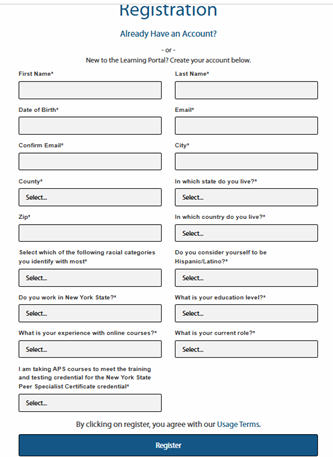
Note: Your email must be the email address you will use for all communication with APS. It will also be your username. Only one email per registered user is allowed—do not create duplicate accounts.
CAPTCHA: If “I’m not a robot” appears, complete the checkbox or picture puzzle until you see a green checkmark.

5. Review the Usage Terms (click the text), then click Register.

Troubleshooting Tip: If registration does not go through, scroll back to the top and review required questions. Correct or complete anything missing.
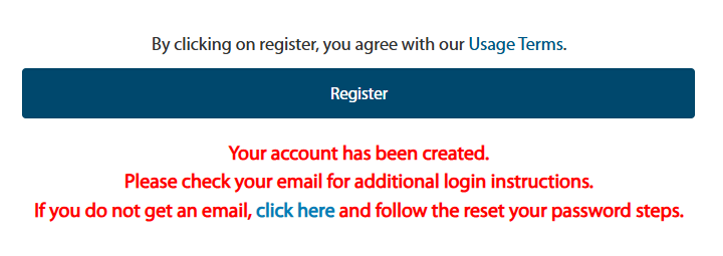
After successful registration, you will receive an email with login credentials. Check Junk/Spam if you don’t see it.
Each mobile device displays pages differently. The APS homepage may look different depending on your device.
- If using an iPhone, be aware of limitations in private browsing mode.
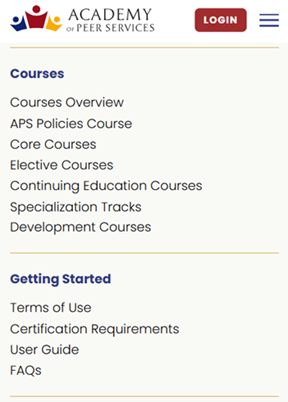
- Scroll down to find links like the Course Catalog, Getting Started, Getting Help, and the Certification Board.
Steps
- Go to: https://www.academyofpeerservices.org
- Tap Log in (usually top-right).
- Tap Create Account.

- Answer all questions and submit the form.
- Review the Usage Terms and tap Register.
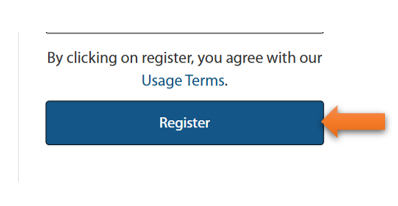
Note: Email will be your username. Only one email per user is allowed—do not create duplicate accounts.
Reminder: Please submit proof of course completion to the Certification Board for CE credit (if applicable)
Once the registration form has been successfully submitted, an email with your login credentials will be sent to the email address you provided electronically.
Please check your Junk or Spam if you do not receive it
Important Note About Mobile Device:
While APS courses can be accessed on a mobile device, we strongly recommend using a desktop or laptop computer with an updated web browser for the best experience.
Mobile devices may cause the following issues:
Course content and assessments may not display or function correctly
Your progress or post-test attempts may not save properly if your screen locks or your browser refreshes
Sessions may time out unexpectedly, which can result in a lost attempt
If you experience any issues accessing a course or completing a post-test on your mobile device, please switch to a desktop or laptop and try again before contacting support.
Returning Users (Log In)
- Go to: https://www.academyofpeerservices.org
- Click Log in (upper-right).
- Enter your username and password, then click Sign in.

Note: Your registered username is the same as before.
If you can’t remember your password, reset it—do not create a new account. Creating multiple accounts violates APS Policies.
- Click on Login.
- Go to the bottom of the sign-in button
- Click on Recover your password.
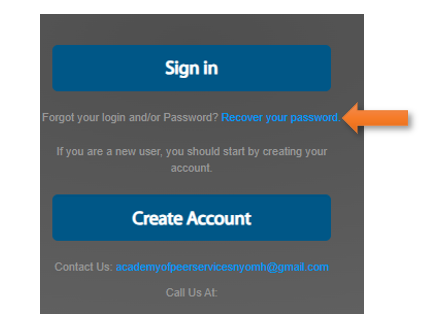
- Enter your username or email and click Request Password.
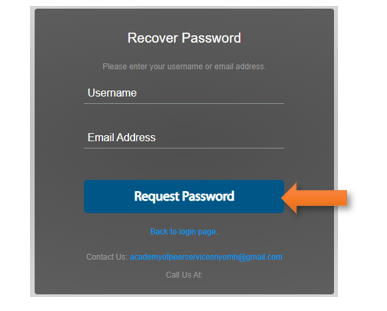
Tip: Use the link in the email to set your password. If the link isn’t active, copy/paste the web address into your browser.
If you don’t receive the email right away, check Junk Mail.
- Go to: https://www.academyofpeerservices.org .If you are not already logged in, click Login (upper-right button)

- If logged in, use the left navigation bar and click Edit Account.
 A new screen appears. Your Last Name, First Name, and registered email should already
appear in the window. (You cannot change your name. but you can change your email
address.) - Check Change my password.
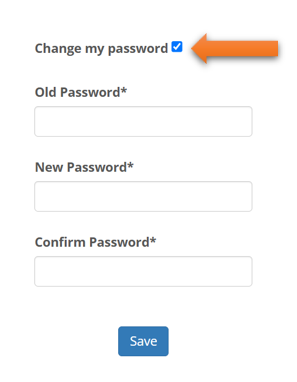
- Enter your current password in Old Password.
- Create a new password and enter the new password again to confirm it was correctly entered.
Password requirements: Minimum 8 characters with at least one uppercase, one lowercase, one number, and one symbol.
Note: You cannot use your name in the password.
- Click Save. If the new password is not accepted, check for errors.
This message will be displayed if there are no errors.

If you have forgotten your password, you can reset it. Here is how to reset your password
- Go to the APS login page: https://nyomh.geniussis.com/PublicWelcome.aspx
- Click the Recover your Password? link on the login screen.
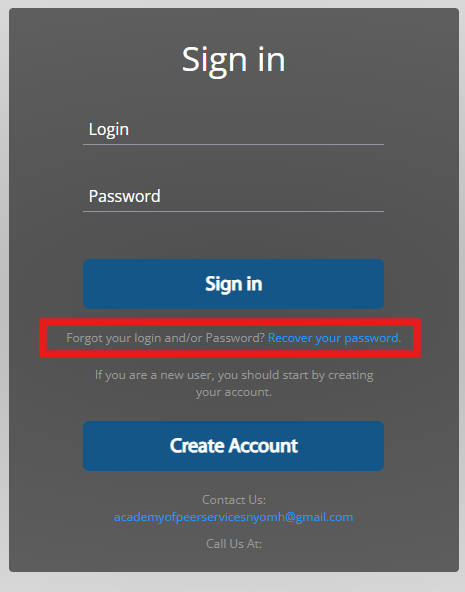
Enter the email address associated with your account.
-
Follow the instructions in the password reset email that is sent to you.
-
Create a new password and return to the login page to sign in.
Note: If you do not receive the password reset email within a few minutes, check your Junk or Spam folder. Be sure to use the email address associated with your APS account. Do not create a new account if you are unable to log in.
APS allows learners to change their email address.
- Login to your Active APS Account
- Go to your dashboard and click on “Edit Account.” Place your cursor in the section under “Email Address.” Here, you will be able to update the email address.
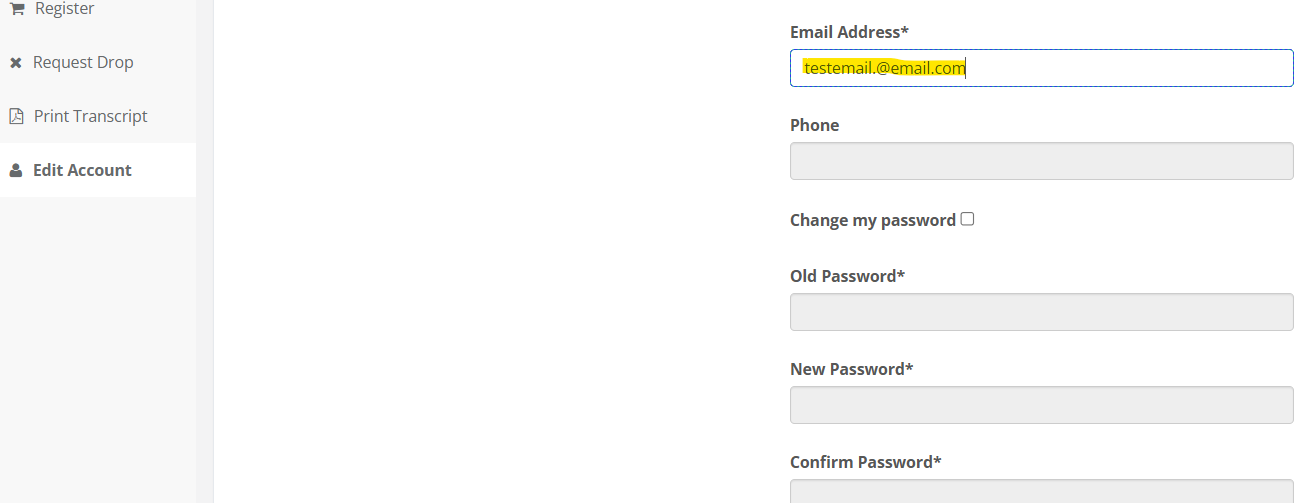
- After you updated your password, please make sure you click on the “save” button.
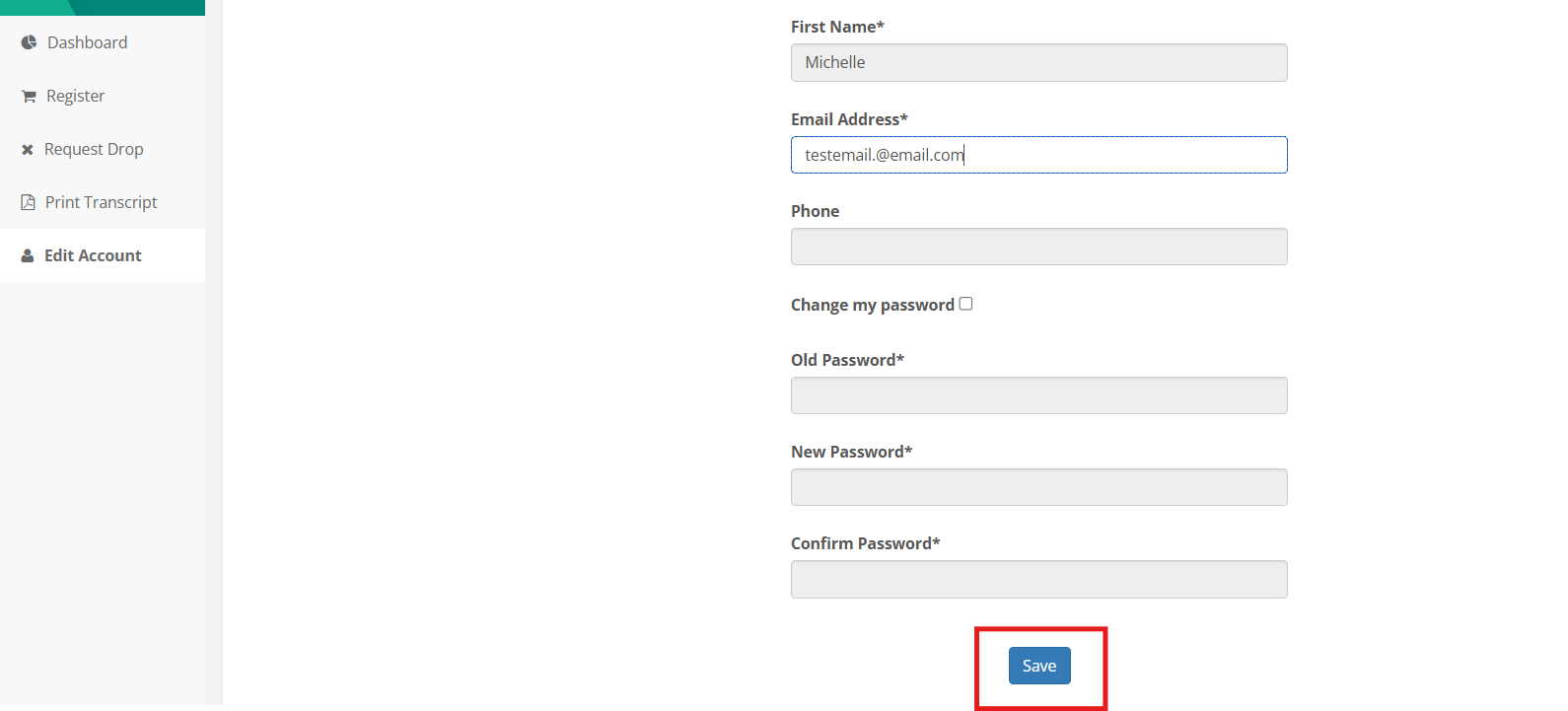
Note: The username will remain the same. You will also have to notify the NYPSCB that you’ve changed the email associated with your account so they can change it in their system. APS and the NYPSCB are not the same agencies.
The Dashboard is where you will access courses and manage your course records.
- Log in to Academy of Peer Services.
- Review the left navigation bar.
Navigation bar options
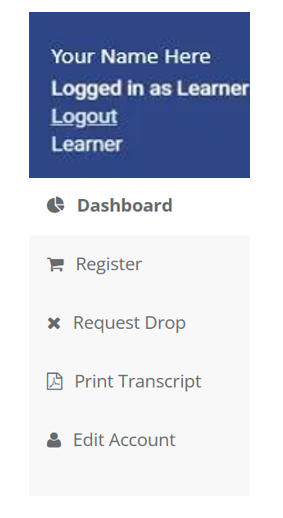
Your username and role (Learner) are in the top block. Use Logout to exit the
Academy of Peer Services. Navigation buttons give you access to the different
features. You will click:
- Dashboard: View course status
- Register: Select courses to take
- Request Drop: Drop a registered course
- Print Transcript: View completed courses (ex: for a list of all of the courses you have completed (Core, Elective, Continuing Education and Supervision)
- Edit Account: Change passwordIf you have not registered for or completed any courses, these windows will be blank.
Dashboard sections

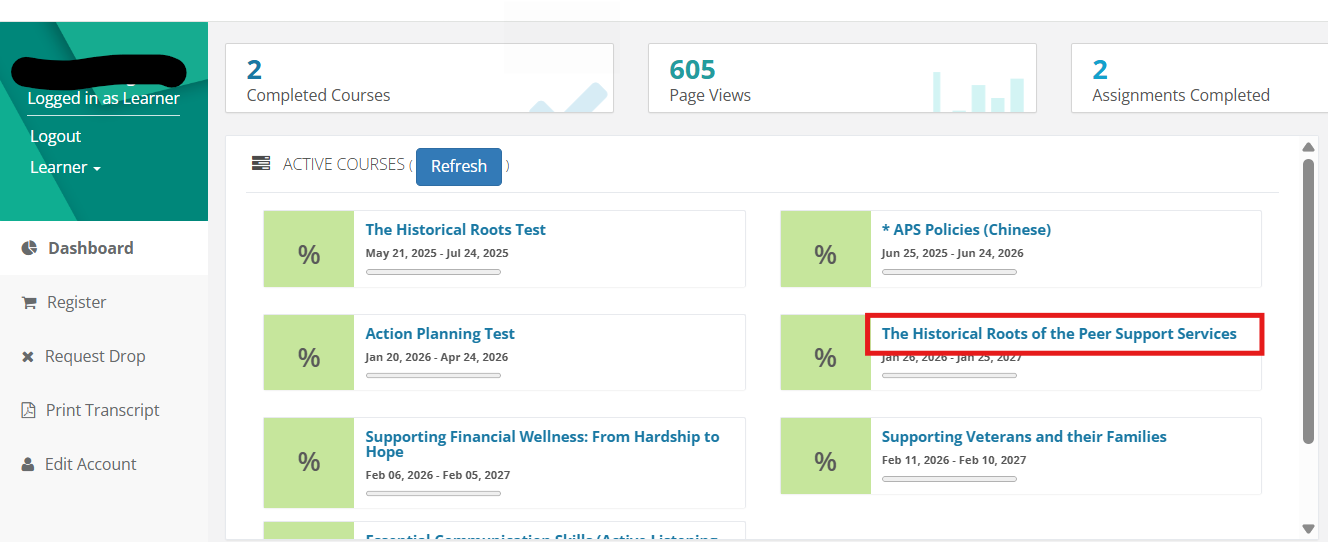
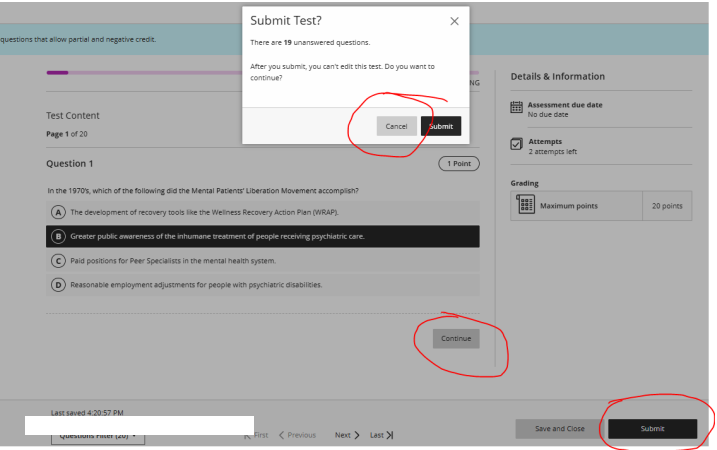
- Active Courses: Courses you are registered to take
- Completed Courses: Certificates earned after passing posttest (if required) + completing Evaluation and Attestation
- Pending Courses: Courses pending until you complete the *APS Policies course
- Learning Path: lists all of the required (Core) courses and tracks your progress for each course. When you have successfully completed all of the courses in the Learning Path, you will be able to download a final Certificate of Completion that lists all 13 of the required (Core) courses needed to apply for the NYCPS-P /NYCPS certification.
Tip: Click the REFRESH button on the Dashboard to see updates after completion.
- On the left navigation bar, click Register.

Find a course using one of these methods:
-
- Scroll alphabetically through the list
- Use the search field to search by title
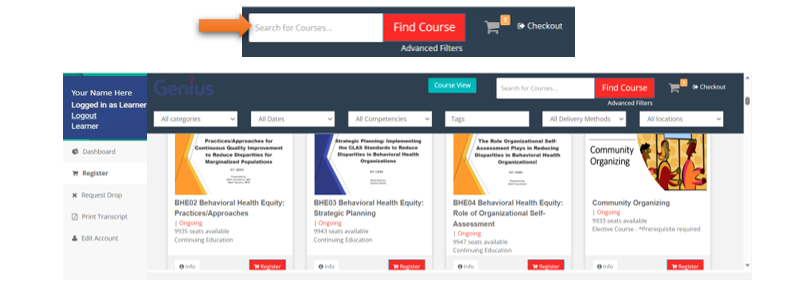
- Use Find Courses and/or the All Categories dropdown to filter (Core, Elective, CE, Required, Supervision, etc.)

- Click Info on a course thumbnail to view details, then Register to add it.
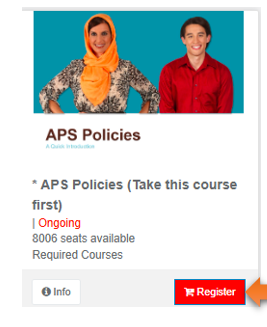
- Repeat to add more courses.
- Click Proceed to Checkout (upper right).
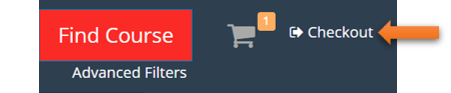
- Verify courses in the confirmation window, then click Confirm.

- Click Go to Dashboard.

- All registered course/courses will be displayed in the Active Courses section of the Dashboard.
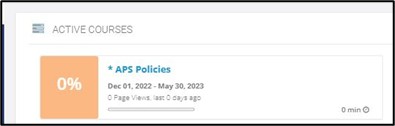
Note: The *APS Policies course is a prerequisite for all other APS courses and is only required one time.
Cost: APS courses are offered free of charge by the New York State Office of Mental Health.
This required course has been added to ensure all APS Users are familiar with the Terms of Use and the rights and responsibilities associated with taking courses in the Academy of Peer Services. You are only required to complete this course one time.
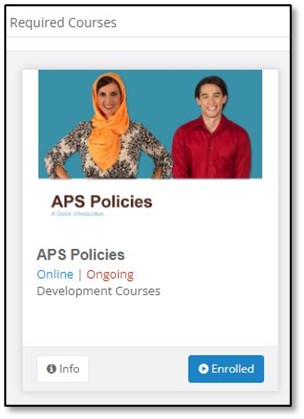
This required course has been added to ensure all APS Users are familiar with the Terms of Use and the rights and responsibilities associated with taking courses in the Academy of Peer Services. You are only required to complete this course one time.
- Once you have registered for the course (See “Register for Course” Instructions)
- Click the course to start
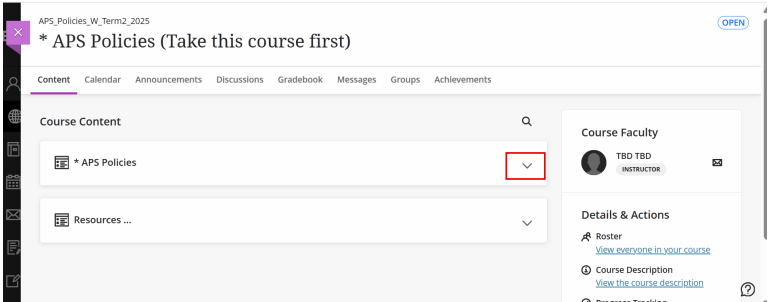 Under the Content tab (top left), you will find information about the course and required items to complete the course.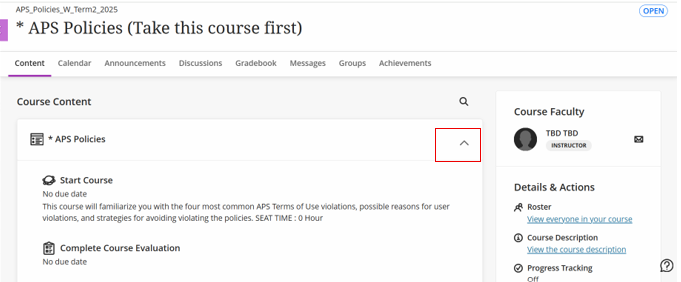
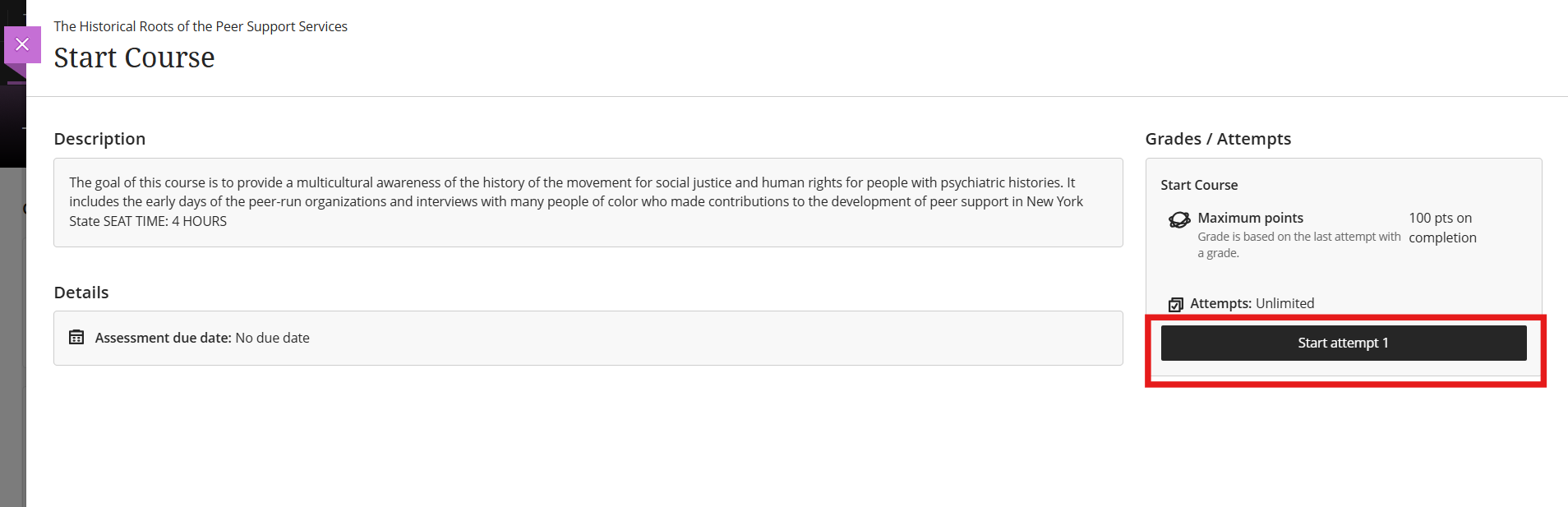
- Click Start Course. The Start Course tab will appear on the right side of your screen. Click the Start attempt button to begin.

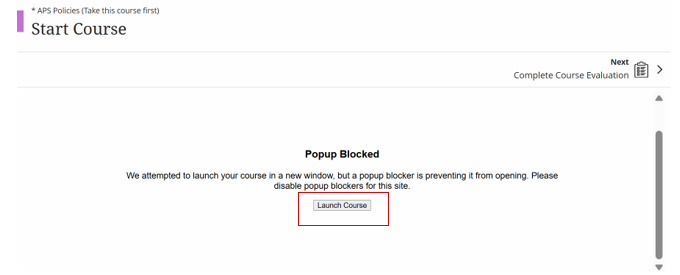
- When the screen changes to Popup Blocked. Click the Launch Course button.
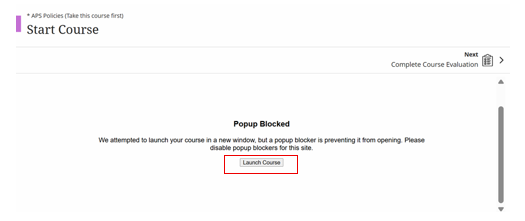
- Click Start Course to begin.
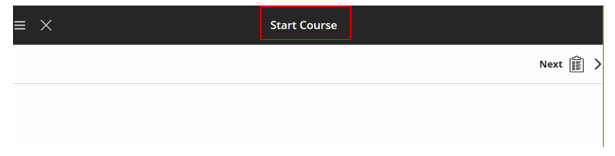
Note: The *APS Policies course has no posttest, so go directly to the Course Evaluation. (All other APS courses require a posttest. After you have completed each course, click Take Posttest under the Content tab.)
- Return to the Content tab and click Complete Course Evaluation.
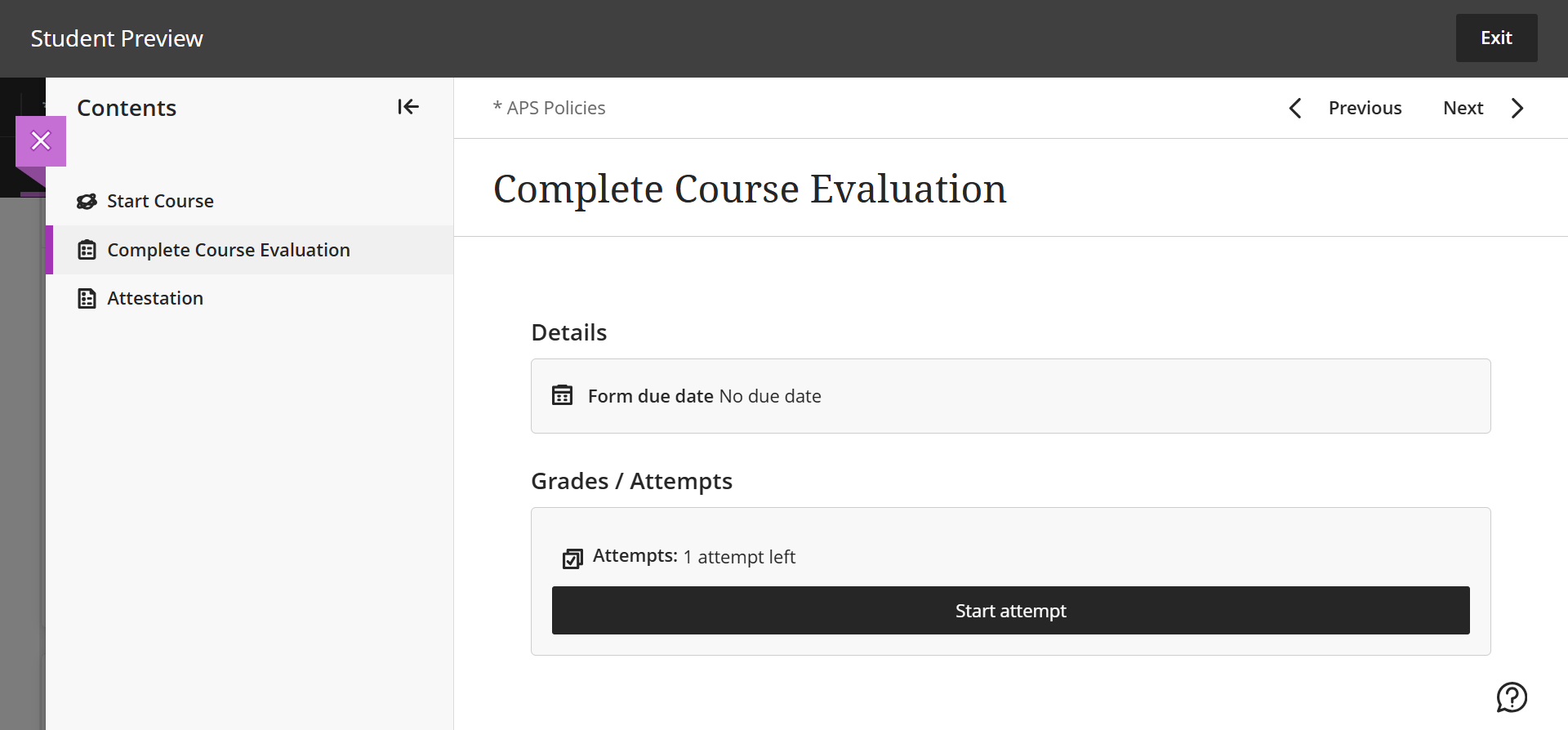

- After you have answered all the questions, click the Submit button. Return to the APS Policies Content tab (or click Next) to complete the Attestation.

- Click Attestation, and the Attestation box will appear on the right side of your screen.
- To begin, click the Start attempt 1 button.
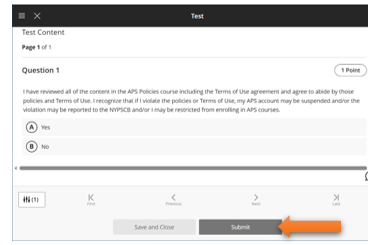
- Complete the Attestation, then click the Submit button.
- After you have completed the *APS Policies course, return to your Dashboard, then click the REFRESH button.
To print the certificate for a course, you will click the title of the course in the Completed Courses.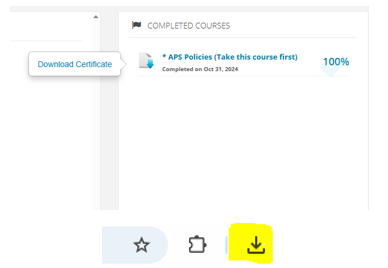
- Once the Download Certificate tab is clicked, look for the down arrow icon on the top right of your browser window to access it.
 When submitting certificates of completion to the
Certification Board, be sure to follow the application
process on their website for all of the required
elements: https://nypscb.org/.
Note: This is present once you’ve completed the 13 CORE courses required to submit the NYPSCB application
Returning Users – *APS Policies Course (Required)
- View your Dashboard.
- If Active Courses is empty, register for the *APS Policies course (see “Register for a Course” instructions).
- Click the *APS Policies course in Active Courses and complete:
- Start Course – to complete the required course content
- Attestation – to verify that you have reviewed and understood the *APS Policies
- Course Evaluation – to provide feedback on the *APS Policies course
Take a Course
- Go to Dashboard.
- Click a course title under Active Courses.
- From the course landing page, you can:
- Start the Course
- Take the Posttest
- Complete the Course Evaluation
- Complete the Attestation
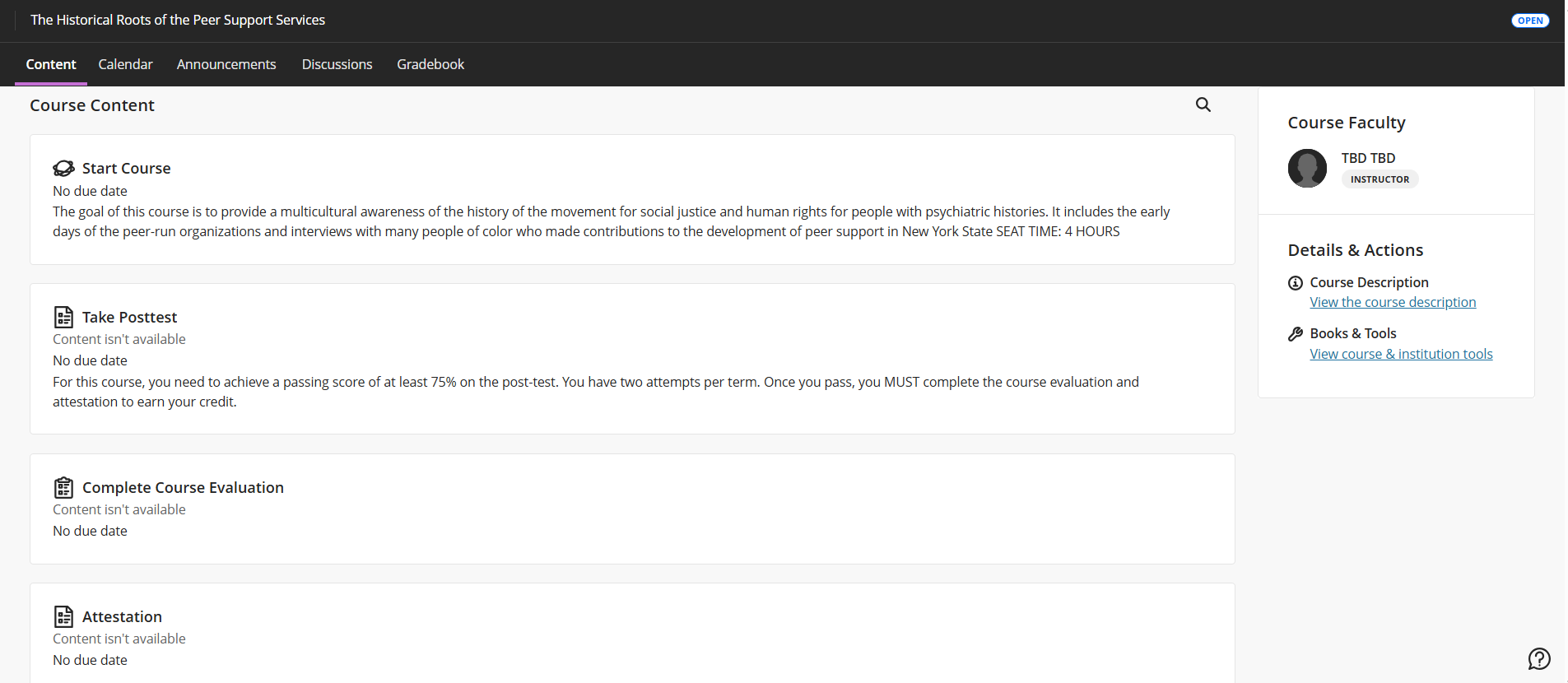 *Note:You must complete reviewing the course. Once you have completed the course review, the Posttest will be available.
Start the course
- Click the course title to open it. Under the Content tab, click Start Course.
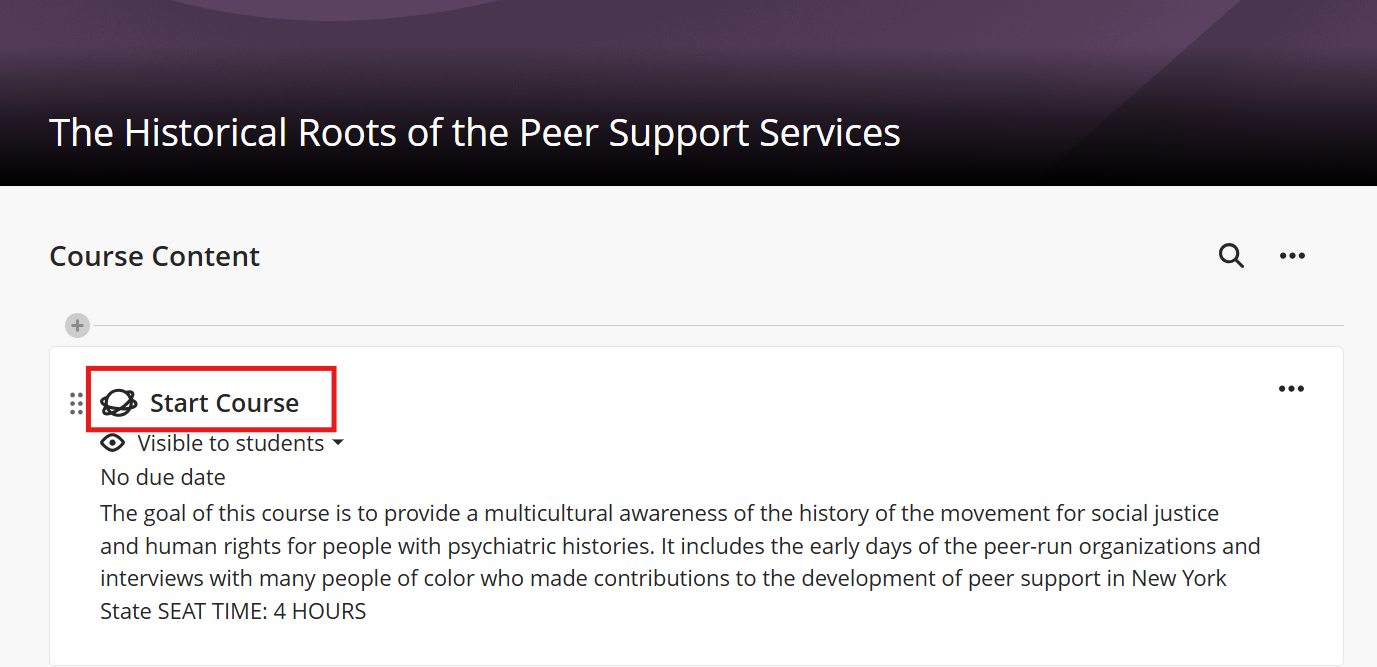
- Another window will open for you to start your attempt. Click “Start attempt 1.”
- This will take you straight to the course. Note: When the screen changes to Popup Blocked. Click the Launch Course button
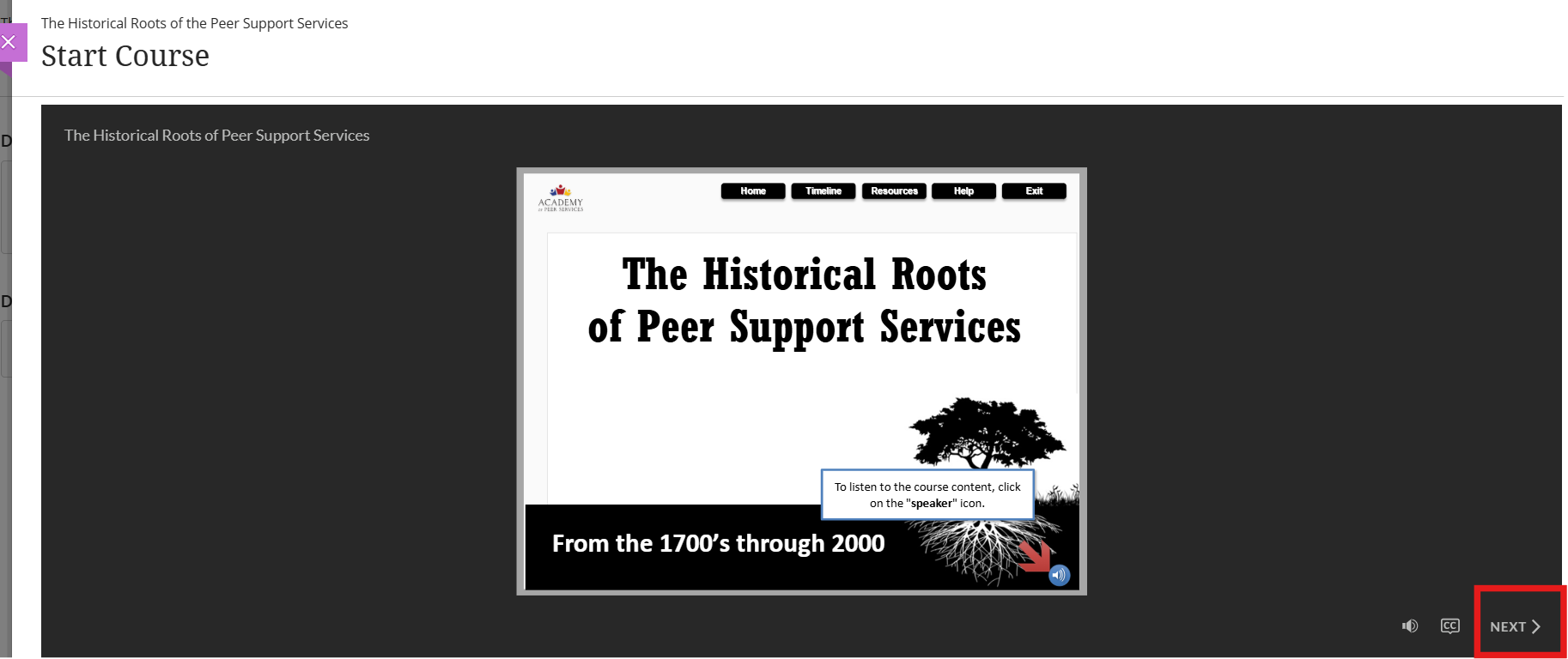
- If you do not get the Popup Blocked screen. Click “Next” to proceed through the course.
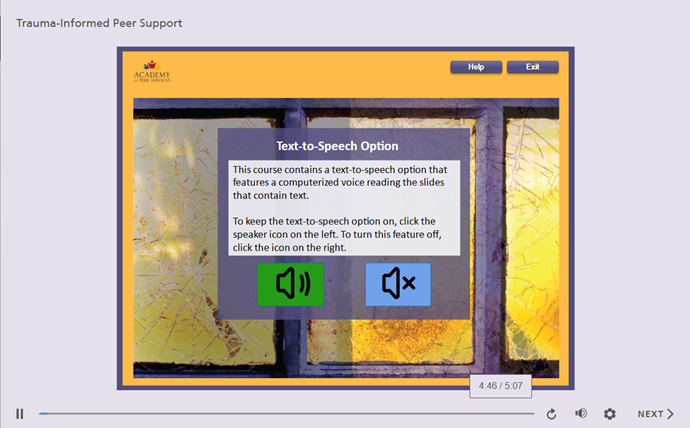
Additionally, some courses offer a text-to-speech option that allows the text to be read aloud to the learner.
Text-to-Speech options (if available)
- Option 1: Learners can click on the speaker icon to listen to the content. Please note that each slide includes a speaker icon, which the learner must click on for each slide to hear the audio.
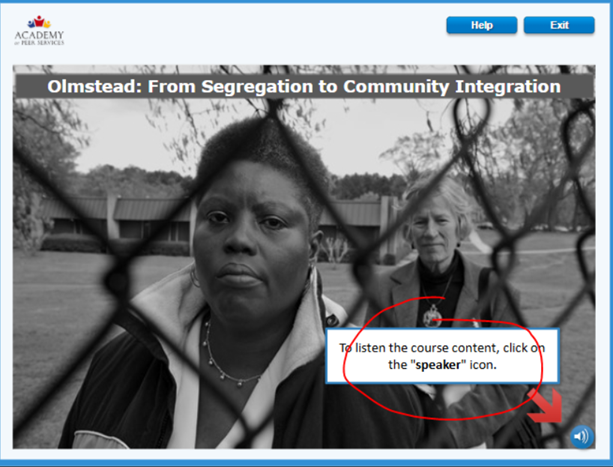
- Option 2: The learner will have access to a Text-to-Speech option that allows them to enable or mute the audio for all slides. To turn on the speech feature, click on the left speaker icon; to mute the audio, click on the right speaker icon
5. Important: After reviewing all lessons, click the Exit button in the upper-right corner of the course window to properly save your progress and return to Blackboard.

Click Take Posttest to test your knowledge of the course. In order to receive a certificate for the course, you must successfully pass the Posttest with a score of 75% or higher (for Core, Elective, and Supervision courses) or 80% or higher for the Continuing Education (CE) category of courses) to be eligible for a certificate.
Note: You will also need to complete the Course Evaluation and Attestation (step 5) before you can receive a certificate of completion. You will NOT be able to do these 2 items if you do NOT get a 75% or better.
You will have two attempts to successfully pass the Posttest. The test is not timed. If you do not pass the first attempt, it is recommended that you go back to review the course content before submitting another attempt. When you complete an attempt, you can review your test answers by clicking on the Gradebook and View (as shown below).

If you are unable to pass after two attempts, you will not have access to another attempt during the current Term but you will be able to register for the course and take the Posttest (again with two attempts) next Term.
Note: After reviewing a Posttest attempt, you may need to click the course title at the top of the page to return to the course landing page.
Click Complete Course Evaluation to give feedback about the course to the instructional design team. (This is required for a course certificate.)
Complete the ATTESTATION
Go back to your Dashboard, click the Blue Refresh button on the APS Dashboard to update your account.
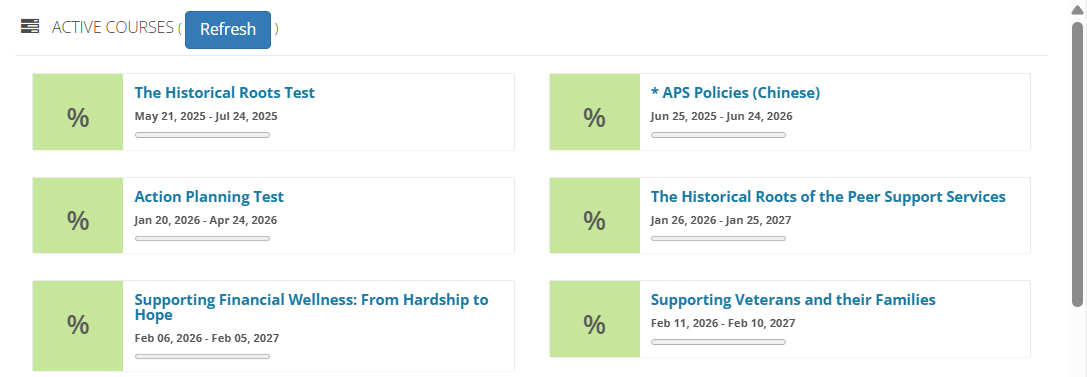
How to Take the Posttest
- Answer every question before submitting.
- If you haven’t finished all questions, click Cancel to return and complete them.
- Click Submit only when all questions are answered.
Posttest requirements
- To earn a certificate, you must pass:
- 75%+ for Core, Elective, and Supervision courses
- 80%+ for Continuing Education (CE) courses
- You must also complete the Course Evaluation and Attestation (after passing).
- You have two attempts. The test is not timed.
Tip: After submitting, you can review answers via Gradebook > View.
If you do not pass after two attempts, you can register again next Term for two new attempts.
Accessibility Resources Available for Learners
What resources are available to learners with sensory (sight, hearing, or learning) disabilities? There are alternate versions of the courses available online that were created for users who have adaptive/assistive technologies, such as magnifiers to view an enlarged version of the course screens, transcripts for audio/video content in the courses, and text files for screen readers and automated narration devices for the course content.
If you need more information about the alternative versions of the courses or if you require special accommodations to complete the posttest and course evaluation, please fill out this online survey. A team member will review your request and get back to you shortly.
We are continuing to expand language accessibility across our courses and are currently offering select course content and resources in additional languages, including Spanish and Mandarin.
Please note that translated courses are still a work in progress. While we are actively updating and reviewing translated materials, learners may occasionally encounter supporting documentation, resources, assessments, or system-generated content that is still displayed in English.
We appreciate your patience as we continue improving and expanding translated learning experiences. If you encounter any translation issues or content that is difficult to understand, please contact APS User Support at support@academyofpeerservices.zendesk.com so we can continue to improve accessibility and learner support.
Currently available translation options may include:
- Course content/modules
- Resource files
- Select quizzes and assessments
- Course descriptions and learner materials
Additional translated content and languages may be added in future updates.
Here is a translation guide on how to translate documents and websites
Withdraw From a Course
- In the navigation bar, click Request Drop.
- Click Request New Drop, select the course and reason, then click Save.

- Verify the course is no longer listed under Active Courses.
Certificates & Transcripts
Print a Certificate (Individual Courses)
- Go to: https://www.academyofpeerservices.org
- Log in.
- On your Dashboard, find the course in Completed Courses (scroll if needed).
- Click the course title and select Download Certificate.
- Open the PDF and verify your name, course title, and hours.
- Save the file with a clear name for your records.
Print a Completion Certificate (13 Core Courses)
- Go to Dashboard.
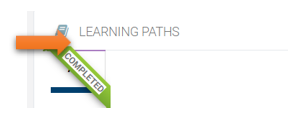
- In Learning Path, if all required courses are complete, you will see a green Completed tag and a Download Learning Path Certificate button.
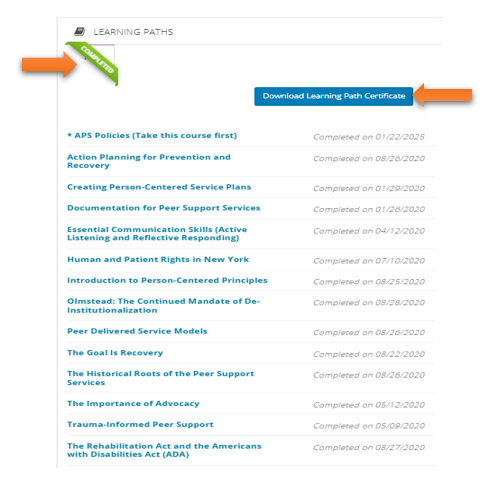
- Click Download to save the Certification of Completion.
- Open the PDF and verify your name.
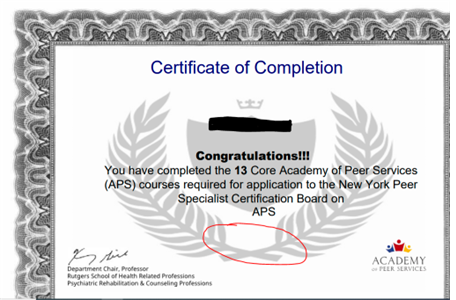
Submitting your certificates: Save all individual course certificates and your Certificate of Completion. Submit them with your completed application per Certification Board requirements.
Certification Board: https://nypscb.org/
Print a Transcript
- From the left navigation bar, click Print Transcript.
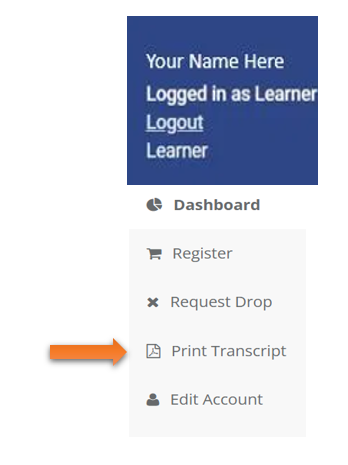
- Review the transcript on screen. (Note: To locate certificates on the Transcript, click the red arrow if you see one to go to the next page.)
- Click Download the Transcript to save a PDF.
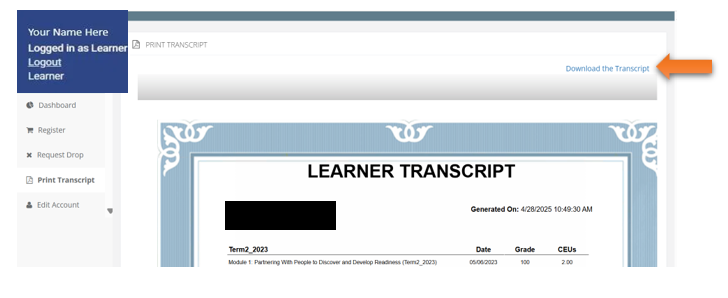
- Confirm all completed courses appear as expected.
- Save the transcript for renewals/recertification and/or Certification Board submission: https://nypscb.org/
Accessing the Certification Board Website
To learn more about the NYPSCB and its certification requirements, visit the APS homepage and click on the “Getting Started” tab. This section provides information about the certification process and includes a link to the Certification Board’s website. If you need to contact the Certification Board staff, you can find their information here: https://nypscb.org/about-us/.
More Help Is Available
- Frequently Asked Questions: click here
- Virtual Learning Community: click here